
Power Automate Toolkit for Smartsheet – Connector
A custom Power Automate connector for Smartsheet, built to fill the gaps the native connector leaves open. Connect with an API key, created as a connection 1 time. No need to continually enter your API token in multiple actions in multiple flows.
Setup
1. Download the file
The current connector version is available to active toolkit subscribers or Smartsheet Guru Elite members.
2. Import into Power Automate
In Power Automate, go to Solutions > Import, and import the connector solution.
3. Create a connection
Create a Smartsheet API token
When creating a connection using either option below, you’ll need a Smartsheet API token. If you aren’t sure how to generate this, you can follow Smartsheet’s guide on generating an API key, or in Smartsheet, go to Account > Personal Settings > API Access, then generate a new access token. Copy it somewhere safe because Smartsheet only shows it once and you need to protect this like your password. Anyone with access to this token can access all of your Smartsheet data!
Option 1: Create a connection under Data
Power Automate allows you to create a connection on the Data page. Sometimes this can be hard to find, and the user interface (UI) changes from time to time. At a high level, you need to navigate to the data page, choose “Connections” then search for the custom connector you imported named SmartWorkflowGuru – Smartsheet. Click the appropriate button to create the connection and enter your token exactly as described here.
Option 2: Add an action to a flow
The first time you use an action from the custom connector in a flow, Power Automate prompts you to create a connection.
Enter the Smartsheet API token properly
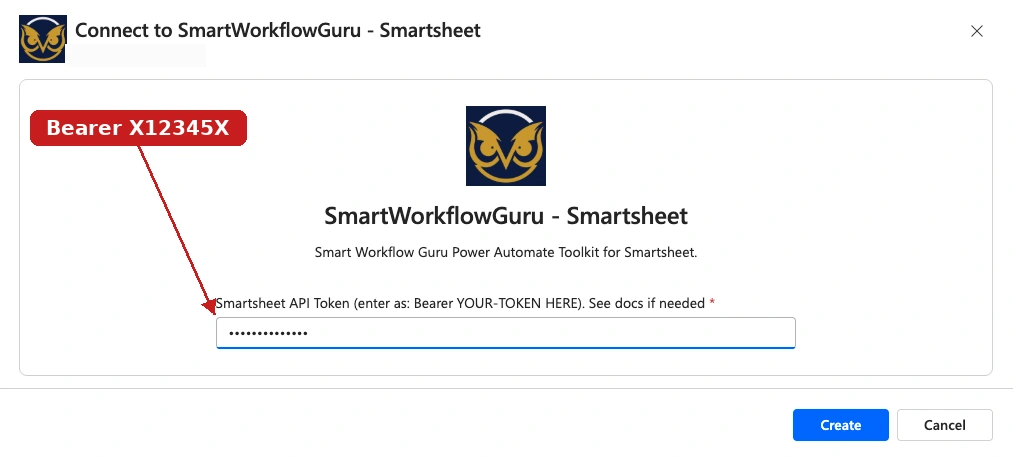
When entering your Smartsheet API token into the Smartsheet API token box, you need to prefix it with Bearer and a space. If it’s easier, you can type this first in a text editor, then paste your API token into it. Once you have that, you can paste the entire string into the connection dialog box.
Example. If your API Token is X12345X, you would enter “Bearer X12345X” into the dialog box. Like this:
Using Custom Actions in Flows
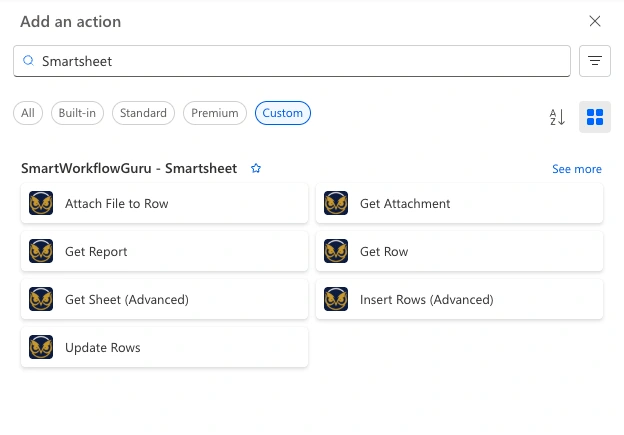
In the flow editor, click the plus button to add a new action, then type “Smartsheet” in the search box. If the Smart Workflow Guru custom actions don’t show, click the “Custom” pill button as shown below, then click on the action you wish to add to your flow.
What NOT to Do
Don’t edit the custom connector named “SmartWorkflowGuru – Smartsheet”. Doing so will prevent it from being updated using the Power Automate managed solution update file when new features are released!
Next steps
Once you’re connected, use the sidebar to jump to any action for its parameters, an example, and known gotchas.