
Get Report
The Get Report action gets data from a Smartsheet report into your flow with access to parameters to shape the response from Smartsheet to the needs of your flow. There is no native Power Automate Smartsheet action for this, but this action makes it easy.
When to use this
Any time you need to get data from a Smartsheet report into your Power Automate flow.
Need this action in your flow?
Get this action plus 6 others and ready-to-use sample flows with the toolkit.
Parameters
| Parameter | Required | Description |
|---|---|---|
reportId | Required | The Smartsheet report to pull from. |
include | Optional | Elements to include: attachments, discussions, proofs, format, objectValue, scope, source, sourceSheets. |
exclude | Optional | Elements to exclude: linkInFromCellDetails, linksOutToCellsDetails. |
level | Optional | Set to 1 for multi-contact data, or 3 for multi-picklist data. Defaults to 0 (backwards-compatible text format). |
pageSize | Optional | Rows per page. Defaults to 100, max 10000. |
page | Optional | Which page of results to return. Defaults to 1. |
accessApiLevel | Optional | Set to 1 to allow COMMENTER access. Defaults to VIEWER access. |
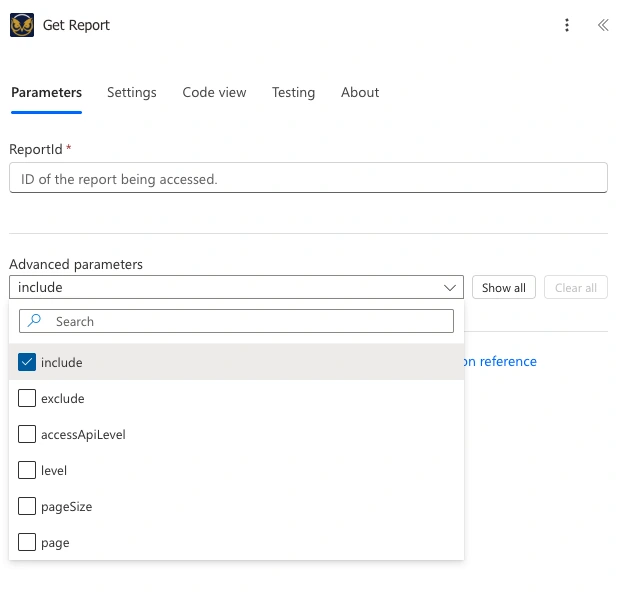
All of the optional parameters are hidden by default. Use the Advanced parameters dropdown above the Include field to check the ones you want to use.
Using reportId
The report ID is either obtained from a report’s properties in Smartsheet, or it is dynamically set by a previous action. Most flows are built around one specific report, so the most common use case is to hardcode the report ID as copied from Smartsheet.
Using include
This is one of the more commonly used optional parameters. It lets you pull in extra information beyond just the rows and cells themselves. You can select more than one at a time. Here’s what each one adds:
attachments— any files attached to rows in the report. Use this if you’re planning to follow up with the Get Attachment action.discussions— comment threads left on rows.proofs— files submitted for review/approval on rows.format— the visual formatting applied to cells, like bold text or background color.objectValue— the underlying raw value for special column types (multi-contact, multi-picklist) instead of just the plain-text version you’d normally see. Pairs with:levelbelow — you need both set to get the full structured data.scope— every sheet the report points to, even ones with no rows currently showing in it, plus workspace-level info if the report draws from a whole workspace. Returned as an object.source— if this report was duplicated from another report, this shows which one.sourceSheets— only the active source sheets: the ones currently contributing visible rows to the report. Returned as a plain array of sheet objects, which is a different shape thanscope.
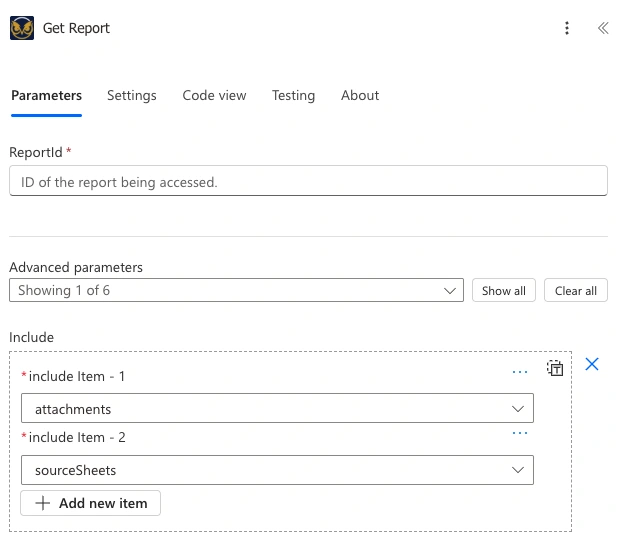
Select Add new item to include more than one value at a time.
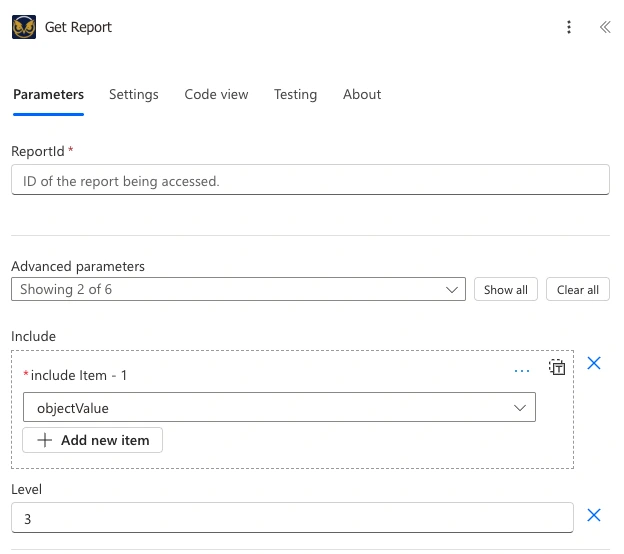
objectValue and level set together, as described above.
Using exclude
Not commonly needed. This trims cross-sheet link details out of the response, which mostly matters if your report pulls from sheets with heavy cross-sheet referencing and you’re trying to keep the payload size down.
Using level
Pairs with: include — this parameter only does something when objectValue is also set in include above.
Only relevant if your report includes multi-contact or multi-picklist columns. Leave this at the default (0) for ordinary text columns. Set it to 1 for multi-contact data, or 3 for multi-picklist data, if you need the underlying structured values rather than the comma-separated display text.
Using pageSize
This is the one you’ll actually use. Default is 100 rows, max is 10,000. If the report in your flow has less than 10,000 rows, the simplest approach is to just set this to 10000 once and get everything back in a single call to avoid pagination logic. If your report is greater than 10,000 rows, then you’ll need to handle pagination to get all of the data.
Using page
Rarely needed in Power Automate flows. This only matters if a single report exceeds the 10,000 row max for pageSize.
Using accessApiLevel
Not commonly used if you’re running the flow on sheets you own or administer. Smartsheet added Commenter as a distinct access level after the API already existed, so by default it’s quietly treated as Viewer for backward compatibility. Setting this to 1 tells the API to recognize Commenter properly, which is relevant if your API token’s access to a sheet is specifically at the Commenter level.
Example
A flow that runs on a schedule, pulls a filtered report with approved invoices that need to be sent through an Outlook inbox.
What you get back
The response includes the report’s rows and cells, plus whatever you asked for with include. The fields you’ll most often reach for in a later step:
- Each row’s
id. You’ll need this if you’re feeding a row into Update Rows afterward. - The source sheet’s
columnId. You’ll need this as well to update rows. - The cell values themselves, which is usually the actual data you’re after.
- If you included
attachmentsordiscussions, those come back as a nested list on each row rather than as their own separate top-level fields. - If you included
proofs, each row gets its ownproofobject (singular) if that row has one. - If you included
format, each row also gets its own row-levelformatstring, separate from each cell’s ownformat. - Unlike attachments and discussions,
source,sourceSheets, andscopeare top-level fields on the report itself, not nested under each row.
Gotchas
If you’re coming from Get Sheet or another sheet-based action, you’ll be used to referencing columns by their columnId. However, reports use a virtualColumnId instead, since a report’s columns can aggregate data from multiple source sheets. You’ll use the virtualColumnId to access data in the report, but you can get the actual columnId of the associated source sheet when needed in the action’s response. This is a very powerful feature.
If you want a list of the source sheets associated with the report, ensure you include the correct parameters for include. The scope parameter will give you all data about the scope of the report including workspaces and sheets. sourceSheets only gives you the sheets that are providing data visible in the report.
Need this action in your flow?
Get this action plus 6 others and ready-to-use sample flows with the toolkit.