
Get Row
Retrieves a single row from a sheet, with the option to include attachments, columns, and other row-level detail.
When to use this
Any time you need detail about one specific row rather than the whole sheet.
Need this action in your flow?
Get this action plus 6 others and ready-to-use sample flows with the toolkit.
Parameters
| Parameter | Required | Description |
|---|---|---|
sheetId | Required | The ID of the sheet containing the row. |
rowId | Required | The ID of the row to retrieve. |
include | Optional | Elements to include: attachments, columns, columnType, discussions, filters, format, objectValue, rowPermalink, writerInfo. |
exclude | Optional | Elements to exclude: filteredOutRows, linkInFromCellDetails, linksOutToCellsDetails, nonexistentCells. |
level | Optional | Level of detail for multi-picklist and multi-contact values when objectValue is included. Valid values are 0, 1, 2. |
accessApiLevel | Optional | Set to 1 to allow COMMENTER access. Defaults to VIEWER access. |
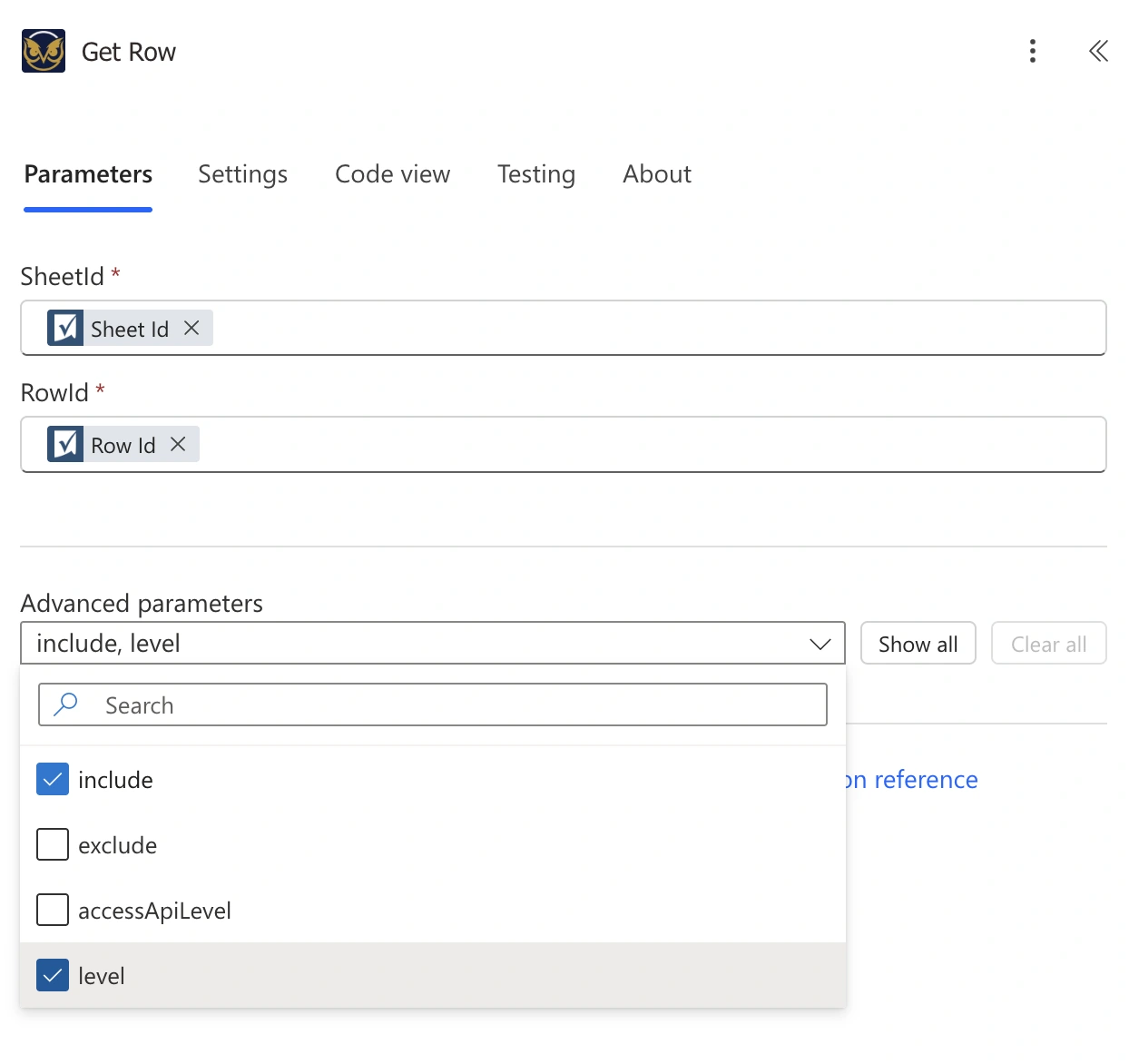
The optional parameters are hidden by default. Use the Advanced parameters dropdown to check the ones you want to use.
Using sheetId
This can be a fixed, hardcoded value take from the properties of a sheet in Smartsheet, but it is very common to get the sheetId dynamically from a trigger or another action.
Using rowId
Almost always comes from somewhere dynamic such as a trigger that fires on a specific row, or a previous step in the flow (like looping over rows from Get Sheet). Hardcoding this value is usually only done when learning the action or troubleshooting.
Using include
You can select more than one at a time. Here’s what each one adds:
attachments— any files or links attached to this row and is a fairly common one to include.columns— the column definitions alongside the row data.columnType— the type of each cell’s column. Mostly useful if you’re also pulling incolumnsand need to interpret values by type.discussions— the row’s discussion threads. To also get attachments within those discussions, includeattachmentsalongside this.filters— whether this row is currently filtered out by any of the sheet’s filters.format— the visual formatting applied to the row and its cells, like bold text or background color.objectValue— the underlying raw value for special column types (multi-contact, multi-picklist) instead of just the plain-text version. Pairs with:levelbelow.rowPermalink— a direct link to the row in the Smartsheet app.writerInfo— who created and last modified the row.
Using exclude
Not commonly needed. linkInFromCellDetails and linksOutToCellsDetails trim cross-sheet reference detail from the response. filteredOutRows and nonexistentCells control whether certain edge-case rows and cells show up at all. Leave these alone unless you have a specific reason to trim the response down.
Using level
Pairs with: include — this parameter only does something when objectValue is also set in include above.
Only relevant if this row includes multi-contact or multi-picklist columns. Leave at the default (0) for ordinary text columns; increase to 1 or 2 for more structured detail on those special column types.
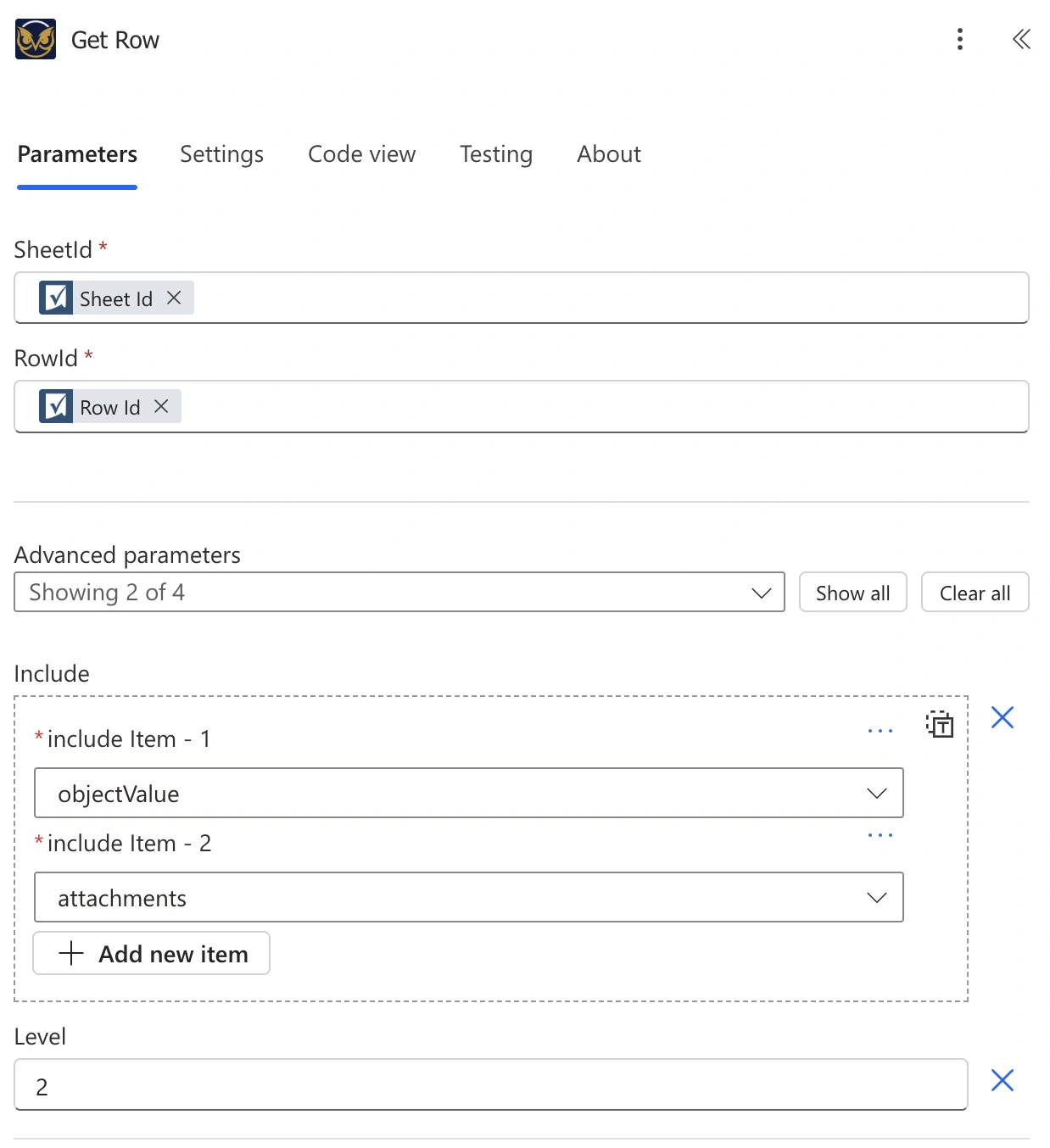
objectValue and level set together, as described above.
Using accessApiLevel
Not commonly used if you’re running the flow on sheets you own or administer. Smartsheet added Commenter as a distinct access level after the API already existed, so by default it’s quietly treated as Viewer for backward compatibility. Setting this to 1 tells the API to recognize Commenter properly, which is relevant if your API token’s access to a sheet is specifically at the Commenter level.
Example
A flow that triggers when a row is created, checks if the row includes attachments. If it does, they are then saved to a SharePoint folder.
What you get back
The response includes the row’s own details and its cells, plus whatever you asked for with include. The fields you’ll most often reach for in a later step:
- The row’s own
id, which is useful if you’re feeding it into Update Rows afterward. - The cell values themselves, under
cells. - If you included
attachments, each one comes back with its ownid,attachmentType, andurl. This is the pairing that matters for the Get Attachment action. - If you included
writerInfo,createdByandmodifiedByeach come back as an object withemailandname. - If you included
rowPermalink, the link comes back aspermaLink.
Gotchas
Attachments won’t appear in the response at all unless you explicitly add attachments to include. If a row clearly has an attachment in Smartsheet but your flow isn’t seeing it, this is almost always why.
If multi-select column values are shown as a string of text instead of an array, you’ll need to include objectValue and set the level properly.
Need this action in your flow?
Get this action plus 6 others and ready-to-use sample flows with the toolkit.