
Get Sheet (Advanced)
Pulls data from a sheet in Smartsheet, with far more control than the native Get Sheet action because it exposes all available query parameters.
When to use this
Any time the native Get Sheet action doesn’t give you enough control, especially when you need to pull in additional data that the native connector doesn’t expose.
Need this action in your flow?
Get this action plus 6 others and ready-to-use sample flows with the toolkit.
How this compares to the native action
| Native Get a Sheet | Get Sheet (Advanced) | |
|---|---|---|
| Browse and pick a sheet by name* | Yes | No |
| Determine which columns to include | Yes | Yes |
| Total parameters | 2 | 13 |
| Filter by specific rows | No | Yes |
| Apply a saved filter view | No | Yes |
| Extra detail (attachments, formulas, formatting, and more) | No | Yes |
| Pagination control | No | Yes |
| Change detection (by version or modified date) | No | Yes |
*Both actions accept a sheet ID typed in directly or set dynamically from earlier in the flow, while the native action also offers browsing sheets by name. In practice, you usually already have the ID available from a trigger or a previous step, so this rarely is useful in practice.
Parameters
| Parameter | Required | Description |
|---|---|---|
sheetId | Required | The ID of the sheet being accessed. |
include | Optional | Elements to include: attachments, columnType, crossSheetReferences, discussions, filters, filterDefinitions, format, ganttConfig, objectValue, ownerInfo, rowPermalink, source, writerInfo. |
exclude | Optional | Elements to exclude: filteredOutRows, linkInFromCellDetails, linksOutToCellsDetails, nonexistentCells. |
columnIds | Optional | Only return these specific columns. |
rowIds | Optional | Only return these specific rows. |
rowNumbers | Optional | Only return rows at these row numbers. |
filterId | Optional | Applies a saved filter view and marks filtered-out rows accordingly. |
rowsModifiedSince | Optional | Only return rows modified after this date/time. |
level | Optional | 0 = text, 1 = contact list, 2 = contact and picklist. |
pageSize | Optional | Rows per page. Defaults to 100, max 10000. |
page | Optional | Which page of results to return. Defaults to 1. |
ifVersionAfter | Optional | Returns an abbreviated sheet if the version matches; otherwise returns the full sheet. |
accessApiLevel | Optional | Set to 1 to allow COMMENTER access. Defaults to VIEWER access. |
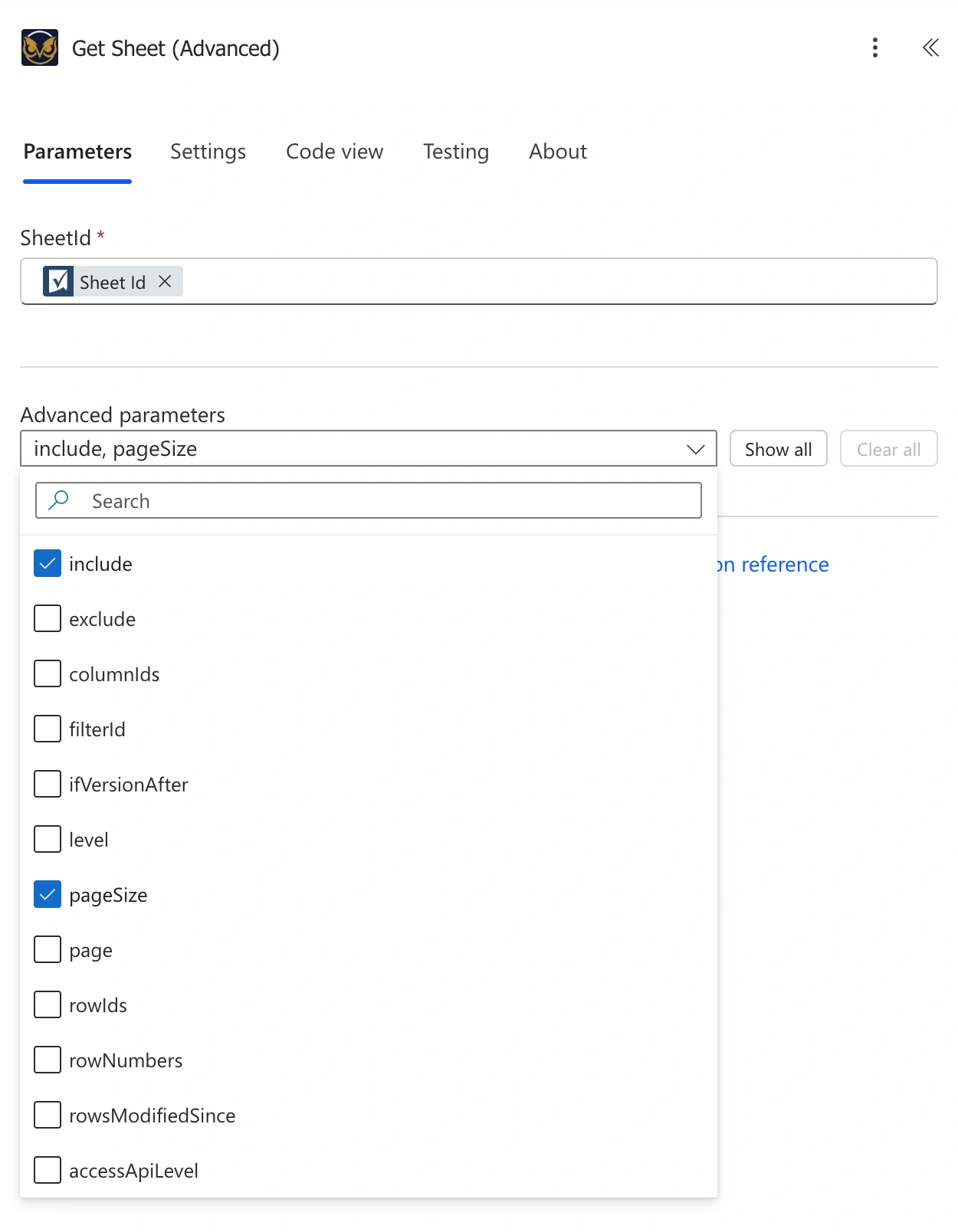
The optional parameters are hidden by default. Use the Advanced parameters dropdown to check the ones you want to use.
Using sheetId
This can be a fixed, hardcoded value taken from the properties of a sheet in Smartsheet, but it is very common to get the sheetId dynamically from a trigger or another action.
Using include
You can select more than one at a time. Here’s what each one adds:
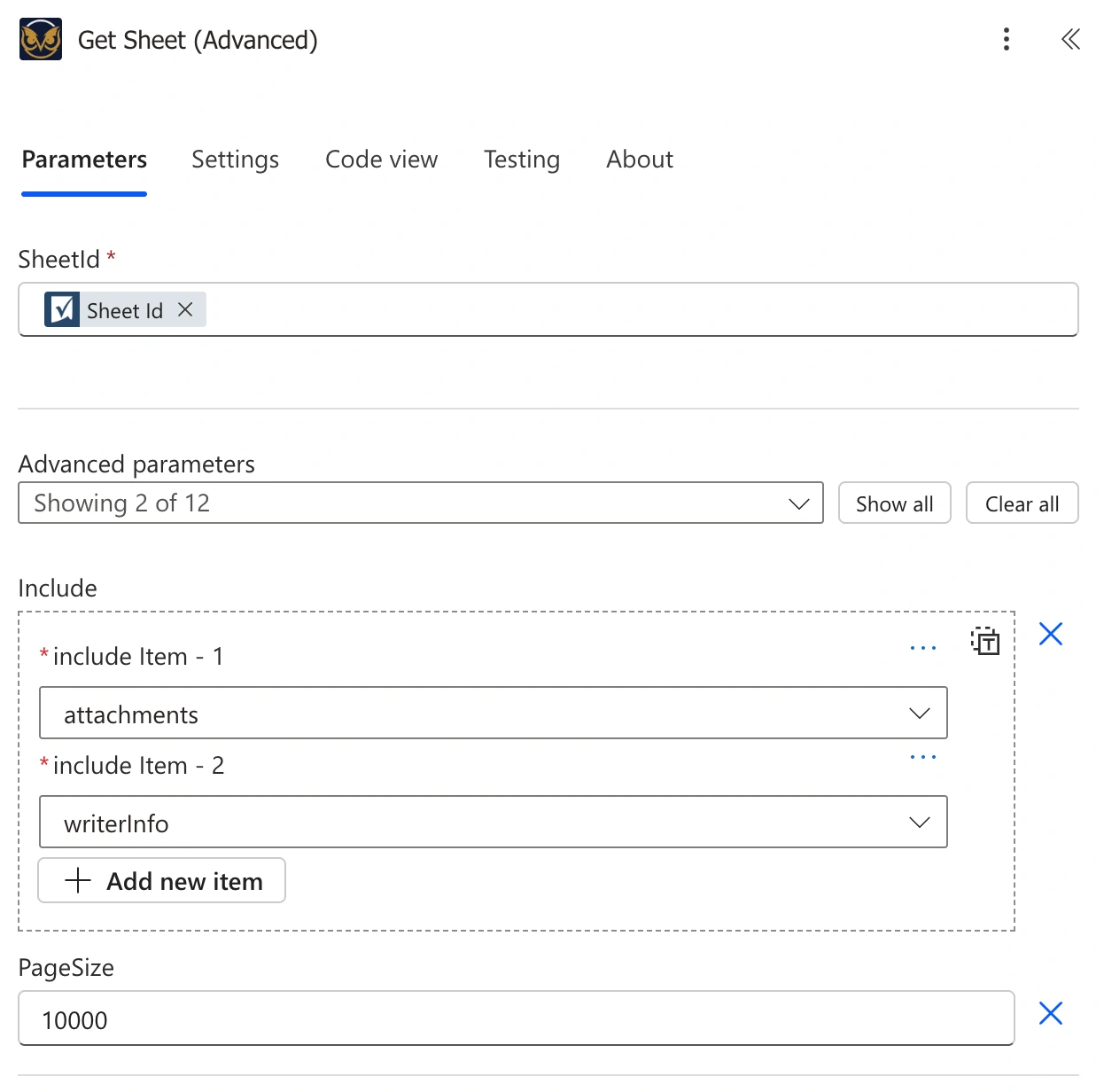
Here, attachments and writerInfo are both selected in Include, alongside pageSize set to 10000.
attachments— row and sheet-level files or links.columnType— the type of each cell’s column.crossSheetReferences— details about formulas that pull data from other sheets.discussions— comment threads on rows.filters— whether each row is currently filtered out by any saved filter view.filterDefinitions— the actual rules behind any saved filter views on the sheet.format— visual formatting on cells, rows, and columns.ganttConfig— Gantt view settings, if Gantt is enabled on the sheet.objectValue— the underlying raw value for special column types (multi-contact, multi-picklist). Pairs with:levelbelow.ownerInfo— who owns the sheet.rowPermalink— a direct link to each row. Returned aspermaLinkon each row (capital L), which is different casing from the sheet-levelpermalinkfield.source— if this sheet was created from a template or another sheet, this shows which one.writerInfo— who created and last modified each row.
Using exclude
Not commonly needed. Trims specific detail out of the response to keep payload size down and is mostly relevant on very large or heavily cross-referenced sheets.
Using columnIds
Narrows the response down to specific columns instead of returning every column on the sheet. This is useful if your flow only needs a specific set of columns and you want to improve the efficiency of your flow.
Using rowIds
Narrows the response down to specific rows when you already know their unique row IDs. Normally these IDs come from an earlier step in the flow, like a trigger or a previous action such as Get Report.
Using rowNumbers
An alternative to rowIds to specify rows. Instead of using unique row IDs, this parameter uses the relative position of the row in the sheet. For example, you can specify a row’s position in the sheet (“row 5”) rather than its underlying ID. You’d use one or the other, not both.
Using filterId
Applies a saved filter view from Smartsheet and marks the rows it would hide as filteredOut in the response, rather than physically removing them. You’ll usually pair this with exclude=filteredOutRows if you only want the rows that pass the filter.
Using rowsModifiedSince
Useful for a flow that runs on a schedule and only needs to process what’s changed since the last run, rather than the whole sheet every time.
Using level
Pairs with: include — this parameter only does something when objectValue is also set in include above.
Only relevant if this sheet has multi-contact or multi-picklist columns. Leave at the default (0) for ordinary text columns.
Using pageSize
Default is 100 rows, max is 10,000. For most sheets, setting this to 10000 once means you’ll never need to think about pagination at all.
Using page
Rarely needed. Only matters if a sheet exceeds the number you set in pageSize and you need to loop through additional pages.
Using ifVersionAfter
An advanced option for flows that check whether a sheet has changed before doing the more intensive work of pulling the full sheet. Most flows won’t need this.
Using accessApiLevel
Not commonly used if you’re running the flow on sheets you own or administer. Smartsheet added Commenter as a distinct access level after the API already existed, so by default it’s quietly treated as Viewer for backward compatibility. Setting this to 1 tells the API to recognize Commenter properly, which is relevant if your API token’s access to this sheet is specifically at the Commenter level.
Example
A flow that pulls only the rows modified in the last 24 hours from a large sheet, using rowsModifiedSince, and processes just those instead of looping through the entire sheet every run.
What you get back
The response includes the sheet’s columns and rows, plus whatever you asked for with include. The fields you’ll most often reach for in a later step:
- Each row’s
id— needed if you’re looping through rows and feeding them into Update Rows or Get Row. - Each column’s
id— needed to reference specific cells by column when building Insert Rows (Advanced) or Update Rows requests. - The cell values themselves, under each row’s
cells. - If you included
attachments, each one comes back with its ownid,attachmentType, andurl. This is the pairing that matters for the Get Attachment action. - If you included
writerInfo, each row’screatedByandmodifiedBycome back as an object withemailandname. - If you included
rowPermalink, each row’s link comes back aspermaLinkwith a capital L, distinct from the sheet’s own lowercasepermalinkfield. - If you included
format, each row gets its own row-levelformatstring in addition to theformatalready available on individual cells.
Gotchas
Attachments won’t appear in the response at all unless you explicitly add attachments to include. If a row or sheet clearly has an attachment in Smartsheet but your flow isn’t seeing it, this is almost always why.
If multi-select column values are shown as a string of text instead of an array, you’ll need to include objectValue and set the level properly.
Each row’s link comes back as permaLink (capital L) when you include rowPermalink which is different casing from the sheet’s own permalink field (lowercase). Mixing these up is an easy way to end up with an undefined value in a later step.
Applying filterId doesn’t remove filtered-out rows from the response, it just marks them. Pair it with exclude set to filteredOutRows if you only want the rows that meet the filter’s criteria.
Need this action in your flow?
Get this action plus 6 others and ready-to-use sample flows with the toolkit.