
Attach File to Row
The Attach File to Row action uploads a file to a specific row. There is no native Power Automate action for this, so it’s another gap this connector fills directly.
When to use this
Any time you want a flow to upload a file to a specific row in a Smartsheet sheet.
Need this action in your flow?
Get this action plus 6 others and ready-to-use sample flows with the toolkit.
Parameters
| Parameter | Required | Description |
|---|---|---|
sheetId | Required | The ID of the sheet containing the row. |
rowId | Required | The ID of the row to attach the file to. |
File | Required | The file content to upload. |
filename | Required | The name to give the uploaded file, including its extension. See below. |
Content-Type | Optional | MIME type of the file being uploaded. See below. |
Using sheetId
This can be a fixed, hardcoded value taken from the properties of a sheet in Smartsheet, but it is very common to get the sheetId dynamically from a trigger or another action.
Using rowId
Almost always comes from somewhere dynamic such as a trigger that fires on a specific row, or a previous step in the flow (like looping over rows from Get Sheet). Hardcoding this value is usually only done when learning the action or troubleshooting.
Using file
This action accepts the file content directly, which is the same file content output you’d get from a “Get file content” action (like from OneDrive or SharePoint), a PDF generation step, or an HTTP action that returns a file.
Using filename
Always include the file extension (e.g. report.pdf, not report). Smartsheet uses the extension in this name to decide which file-type icon to display. The connector automatically encodes for spaces and special characters, so no manual formatting is needed.
Using Content-Type
This field is optional, but accepts MIME types for the file type, as shown in the Content-Type column in the table below. This is not an exhaustive list, but covers common documents. If it is left blank, Smartsheet makes its best guess based on the extension of the file.
| File type | Content-Type |
|---|---|
application/pdf | |
| PNG image | image/png |
| JPEG image | image/jpeg |
| Word document | application/vnd.openxmlformats-officedocument.wordprocessingml.document |
| Excel spreadsheet | application/vnd.openxmlformats-officedocument.spreadsheetml.sheet |
| Plain text | text/plain |
| Generic/unknown | application/octet-stream |
Example
A permit document is uploaded to SharePoint for a specific project, and the permit document is attached to the associated project row in Smartsheet.
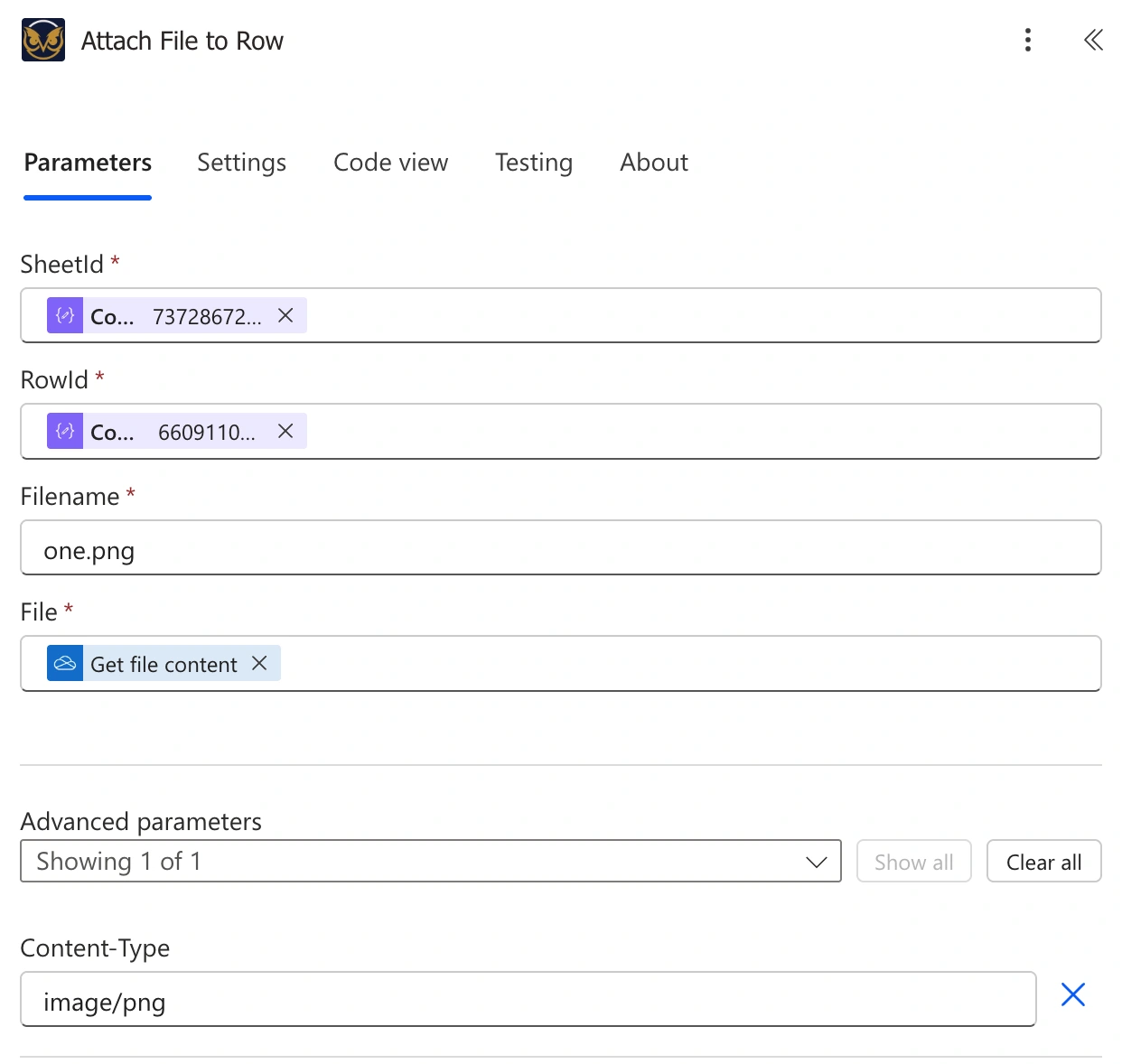
A filled-out example: SheetId and RowId come from earlier steps in the flow, Filename is typed in directly, File is a Get file content output from a previous action, and the optional Content-Type is set explicitly under Advanced parameters.
What you get back
The newly created attachment object, including its id, filename, and attachmentType (this will be FILE, since that’s the only type this action creates).
Gotchas
If the filename doesn’t include an extension (like “.pdf” or “.jpg”), the file still uploads successfully and can still be downloaded, but Smartsheet won’t show a file-type icon for it, since that icon comes from the filename’s extension.
Smartsheet doesn’t check for existing attachments with the same name. Uploading a file with the same filename as one already on the row creates a second, separate attachment rather than overwriting or versioning it. Both will show with identical names.
Smartsheet limits file uploads through the API to 30MB, so it’s worth checking file size beforehand if your flow handles unpredictable file sources.
Need this action in your flow?
Get this action plus 6 others and ready-to-use sample flows with the toolkit.